

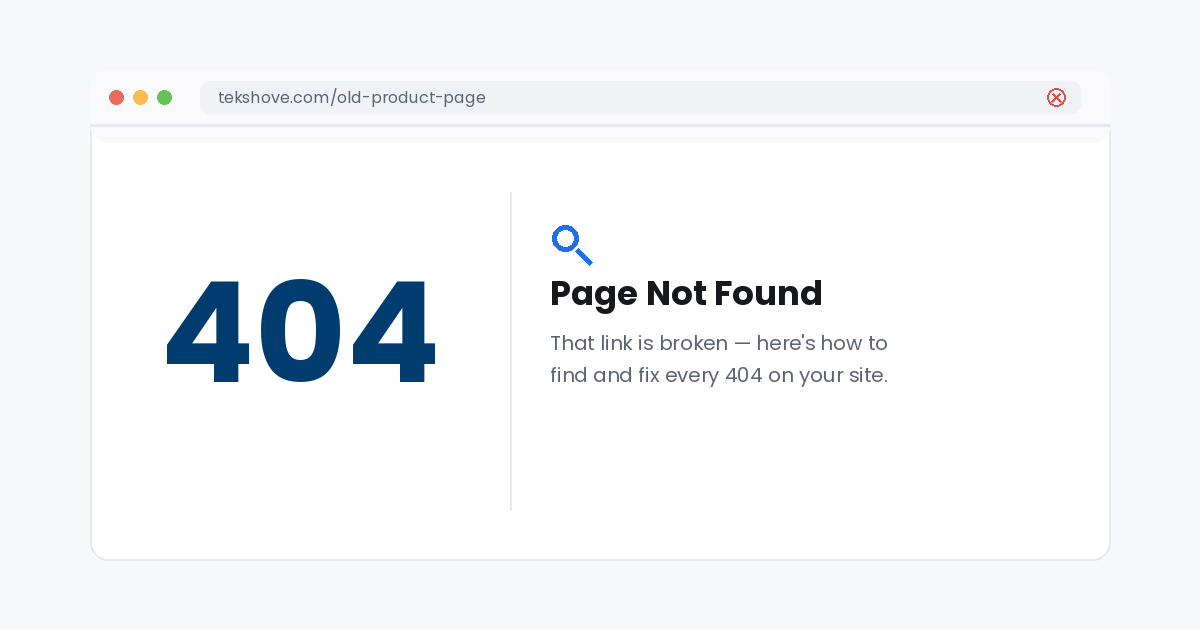
A broken link sends visitors straight to a dead end, here’s how to catch every one.
How to fix 404 error pages starts with understanding what they are: a “404 page not found” error means the page a visitor (or Google) tried to reach doesn’t exist at that address anymore, it may have been deleted, renamed, or never existed in the first place. A stray 404 here and there is normal, but too many quietly drain traffic, rankings, and trust.
In this guide you’ll learn exactly what a 404 error means, why it’s worth fixing, and how to track down and repair every broken page on your site in six simple steps.
The short answerFind your broken URLs in Google Search Console, then either 301 redirect them to the right page, restore the content if it was deleted by mistake, or fix the permalink settings causing them, and add a helpful custom 404 page for anything left over.
In this guide:
- What does a “404 page not found” error mean?
- Why fixing 404s matters
- The 6 step fix, in order
- Frequently asked questions
What does a “404 page not found” error mean?
A 404 is the standard message a web server sends when it can’t find anything at the URL requested. It usually happens because a page was deleted, its address changed, a link was typed or copied incorrectly, or an old link points somewhere that no longer exists. Browsers and search engines both treat it as a dead end.
Why fixing 404s matters
Every 404 is a visitor who came looking for something and hit a wall instead, most will simply leave. It also affects SEO: Google routes ranking value through your links, and broken internal links waste that value, while broken external links (from other sites pointing to you) throw away traffic and authority you’ve already earned. This often shows up alongside the issues in our guide on why a website isn’t showing on Google. Fixing 404s protects both visitors and rankings.
How to fix 404 error, step by step
Here are the six steps to track down and repair every broken page on your site.
1.Confirm the 404 is real
Before fixing anything, make sure it’s a genuine broken link and not a fluke.
How: Visit the exact URL yourself in an incognito window. Rule out a typo in the address, a caching issue, or a temporary server hiccup before you treat it as a true 404.
2.Find every broken link
One 404 is easy to spot, the rest are usually hiding.
How: Open Google Search Console → Pages, and look under “Not found (404)” for a full list of broken URLs Google has already crawled. A site crawler tool can catch any it’s missed.
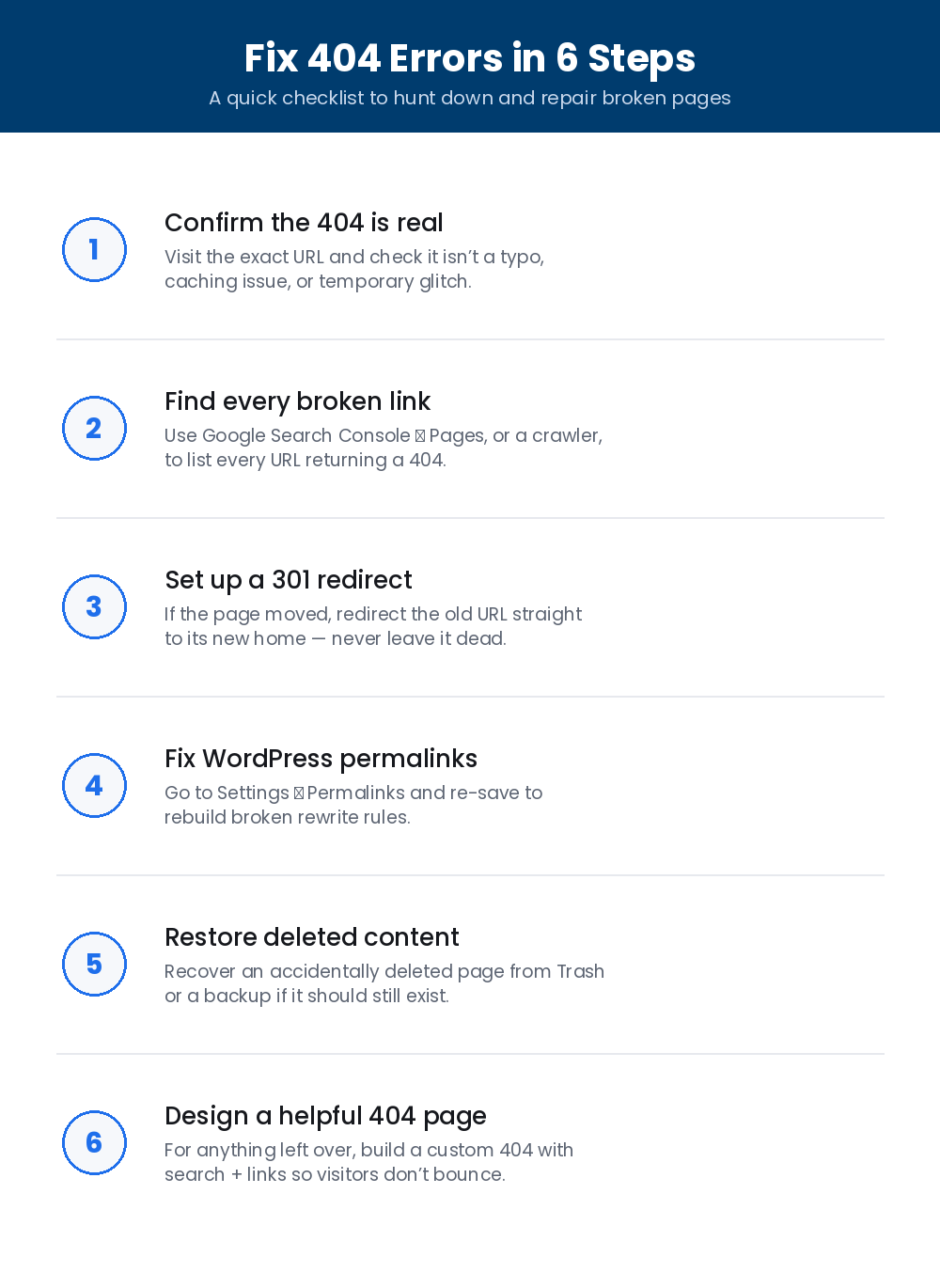
Save this checklist, the six steps to a 404 free site.
3.Set up a 301 redirect
If the page moved or was renamed, the old address should still lead somewhere useful.
How: Add a 301 (permanent) redirect from the old URL straight to its new equivalent. A plugin like “Redirection” makes this a two minute job on WordPress, or your host/developer can add the rule directly.
4.Fix WordPress permalink settings
Sometimes a whole batch of pages 404s at once because the URL structure itself broke, not the individual pages.
How: In WordPress, go to Settings → Permalinks and click “Save Changes” without altering anything, this quietly rebuilds the rewrite rules that route visitors to the right page.
5.Restore deleted content
If a page 404s because it was deleted by accident, redirecting won’t help, you need the content back.
How: Check Pages/Posts → Trash first, since WordPress keeps deleted items for 30 days. If it’s gone from there too, restore the page from your most recent backup.
6.Design a helpful custom 404 page
You won’t catch every broken link right away, a good 404 page keeps the visitors you do lose from bouncing straight off.
How: Replace the default “not found” message with a branded page that includes a search bar, a link back to the homepage, and links to your most popular pages.
Frequently asked questions
Do 404 errors hurt my SEO?
A few 404s are normal and won’t hurt rankings on their own. The real damage comes from links (internal or external) pointing at broken pages, since that wastes ranking value and creates a poor experience.
Should I redirect every 404 to my homepage?
No, only redirect to a genuinely relevant page. Redirecting everything to the homepage confuses visitors and search engines alike; a custom 404 page is the better fallback when there’s no true equivalent.
Why do I have so many 404s all of a sudden?
This is often caused by a permalink structure change, a theme or plugin update, or a migration. Re saving your permalink settings fixes most sudden spikes.
How long does it take to fix?
Knowing how to fix 404 error pages the right way makes this quick: finding the broken URLs takes minutes in Search Console, and redirecting or restoring each one is fast too, most sites are fully cleaned up within an hour.
Still seeing 404 errors?
If your website is throwing “page not found” errors and you’re not sure which ones matter, TekShove can find every broken link, set up the right redirects, and build you a custom 404 page, fast. Let’s get your site fully connected.
Talk to Our Team
Tell us what you need help with and our team will get back to you.