

A recent, tested backup is the difference between a bad afternoon and losing your business overnight.
How to backup a website properly comes down to five habits: choosing a method, automating it, storing copies off site, testing the restore, and keeping more than one version. Skip any of these and your “backup” might not actually save you when it matters.
In this guide you’ll learn why backups matter more than most site owners realize, and the 5 steps to set yours up properly.
The short answerInstall a backup plugin, schedule automatic daily or weekly backups, store copies off your server (Google Drive, Dropbox, or S3), and actually test a restore at least once. That combination protects you from almost anything.
Why you must back up your website
Websites break for reasons that have nothing to do with skill or caution, a bad plugin update, a hacked server, an accidental deletion, or a hosting failure can wipe out months of work in seconds. Knowing how to backup a website properly, before disaster strikes, is closely related to the risks covered in our guide on fixing the “not secure” SSL warning, since both come down to protecting a site you’ve invested real time and money into. Without a backup, recovery can mean rebuilding from nothing.
How to backup a website: 5 steps that actually protect you
Work through these once to set everything up, and the system runs itself from there.
1.Choose a backup method
You have three realistic options: a WordPress plugin, your hosting provider’s built in backup tool, or a manual export.
Fix: For most sites, a plugin like UpdraftPlus is the easiest to set up and maintain long term. See the official WordPress.org backup documentation for the full range of options.
2.Set an automatic backup schedule
A backup only helps if it’s recent, manually remembering to run one is how most people end up with nothing when disaster strikes.
Fix: Set daily backups for active sites with frequent content or orders, and weekly at minimum for smaller, less active sites.
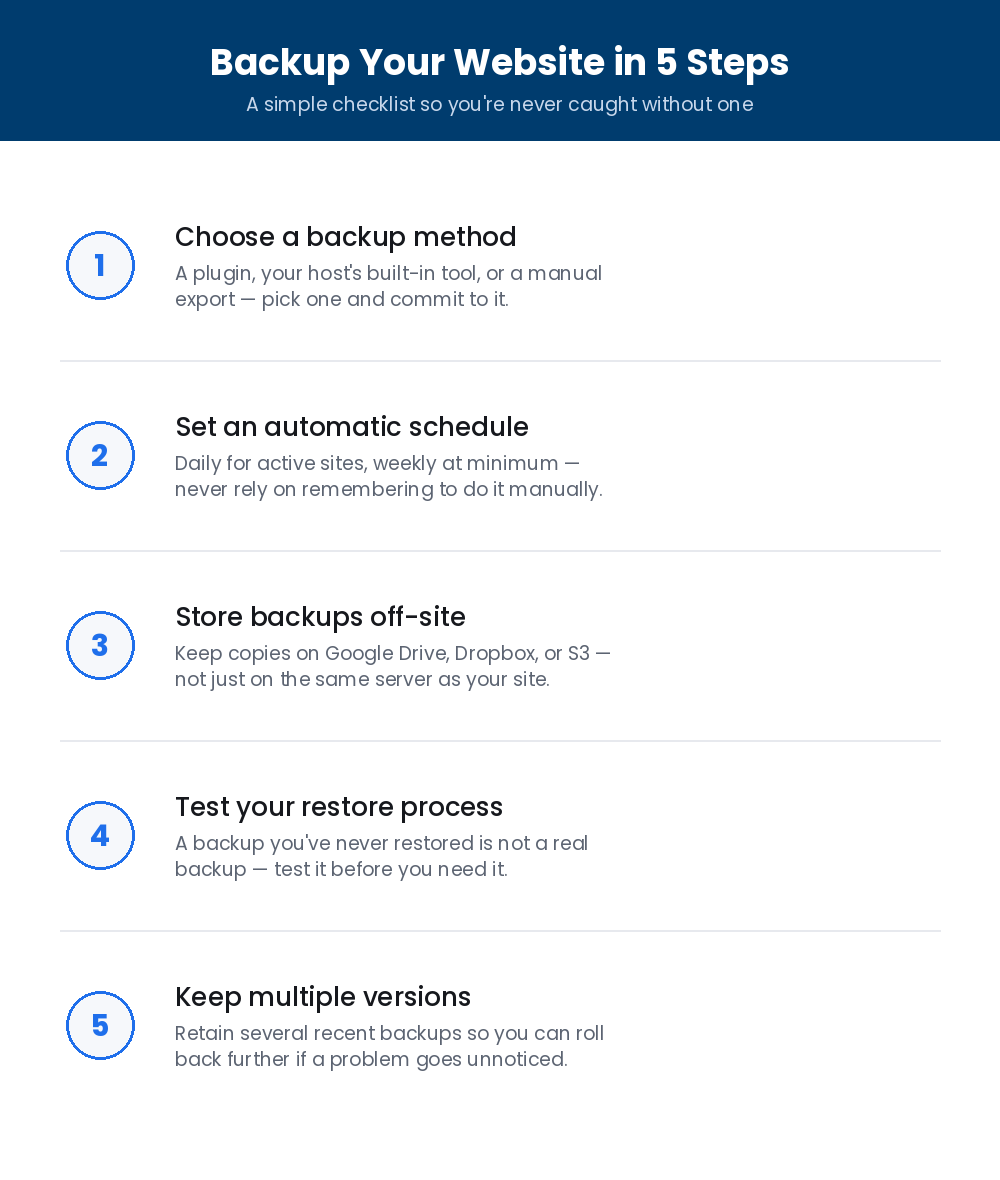
Save this how to backup a website checklist and set it up once, properly.
3.Store backups off site
A backup stored on the same server as your live site disappears along with everything else if that server fails or gets compromised.
Fix: Connect your backup plugin to Google Drive, Dropbox, or Amazon S3 so copies live somewhere completely separate.
4.Test your restore process
A backup file you’ve never actually restored from is a guess, not a guarantee, some backups are silently incomplete or corrupted.
Fix: Restore a backup to a staging site at least once so you know the process works before you actually need it.
5.Keep multiple backup versions
If a problem goes unnoticed for a few days, your most recent backup might already contain the same issue.
Fix: Keep at least 3 to 5 recent versions in rotation so you can roll back further if needed, not just the latest one.
Frequently asked questions
How often should I back up my website?
Daily for stores or frequently updated sites, weekly at minimum for smaller brochure sites. The more often your content changes, the more often you should back up.
Is my hosting provider’s backup enough on its own?
It’s a good extra layer, but not a full solution on its own, if your hosting account itself is compromised or cancelled, host only backups can be lost along with it.
How do I know if a backup actually works?
The only real test is restoring it, ideally to a staging site, not your live one. A backup you’ve never restored from is unproven.
What’s the easiest way to backup a website on WordPress?
The easiest way to backup a website on WordPress is a plugin like UpdraftPlus, set to run automatically and store copies off site, which covers most sites reliably.
Not sure your backups are actually working?
If you’re not confident your website is properly backed up, TekShove’s Web Development team knows how to backup a website the right way, automated, off site, and tested, so you’re never one bad update away from losing everything.
Talk to Our Team
Tell us what you need help with and our team will get back to you.