
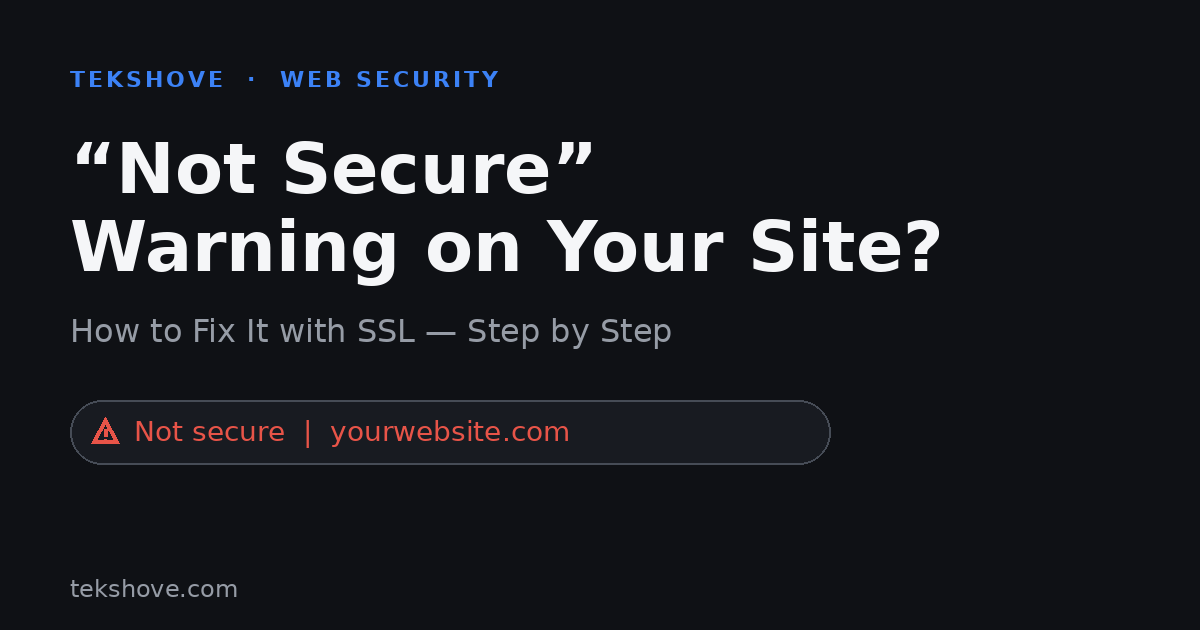
That “Not secure” label scares visitors away, here’s how to replace it with a padlock.
If your browser shows a “website not secure” warning next to your address, it means your site is missing an SSL certificate and is loading over HTTP instead of HTTPS. It looks alarming to visitors, but the fix is straightforward, and usually free.
In this guide you’ll learn exactly what the “not secure” warning means, why it matters, and how to fix a website not secure error in six simple steps.
The short answerYour site shows “not secure” because it has no SSL certificate. Install a free SSL certificate (most hosts offer one in one click), force your whole site to load over HTTPS, and the warning is replaced by a secure padlock.
What does the “website not secure” warning mean?
When a site loads over plain HTTP, the data between the visitor and your site isn’t encrypted. Browsers like Chrome flag this with a “Not secure” label to warn people their information could be intercepted. An SSL certificate turns HTTP into HTTPS (the “S” means secure) and swaps that warning for a padlock icon.
Why fixing it matters
A “not secure” warning does real damage. Visitors don’t trust it, many leave immediately, and few will ever enter contact or payment details. It also hurts SEO: HTTPS is a Google ranking signal, and an insecure site can struggle to rank or even to get indexed properly, related to the issues in our guide on why a website isn’t showing on Google. Fixing it protects both trust and rankings.
How to fix a website not secure warning, step by step
Here are the six steps to secure your site with SSL and remove the warning for good.
1.Get an SSL certificate
An SSL certificate is what encrypts your site. The good news: you almost never need to pay for one.
How: Most hosting providers include a free SSL certificate from Let’s Encrypt. Check your hosting dashboard, or ask your host to enable free SSL for your domain.
2.Install it in your hosting
Once you have the certificate, it needs to be activated on your domain.
How: In cPanel, open the SSL/TLS or SSL Certificates tool and enable it for your site. On many hosts this is a single “Install” or “AutoSSL” button, or support can do it for you.
3.Force your whole site to use HTTPS
Having SSL installed isn’t enough, your pages must actually load over HTTPS, and every HTTP visitor should be redirected.
How: Set up a site wide 301 redirect from HTTP to HTTPS. A plugin like “Really Simple SSL” does this automatically on WordPress, or your host can add the redirect rule.
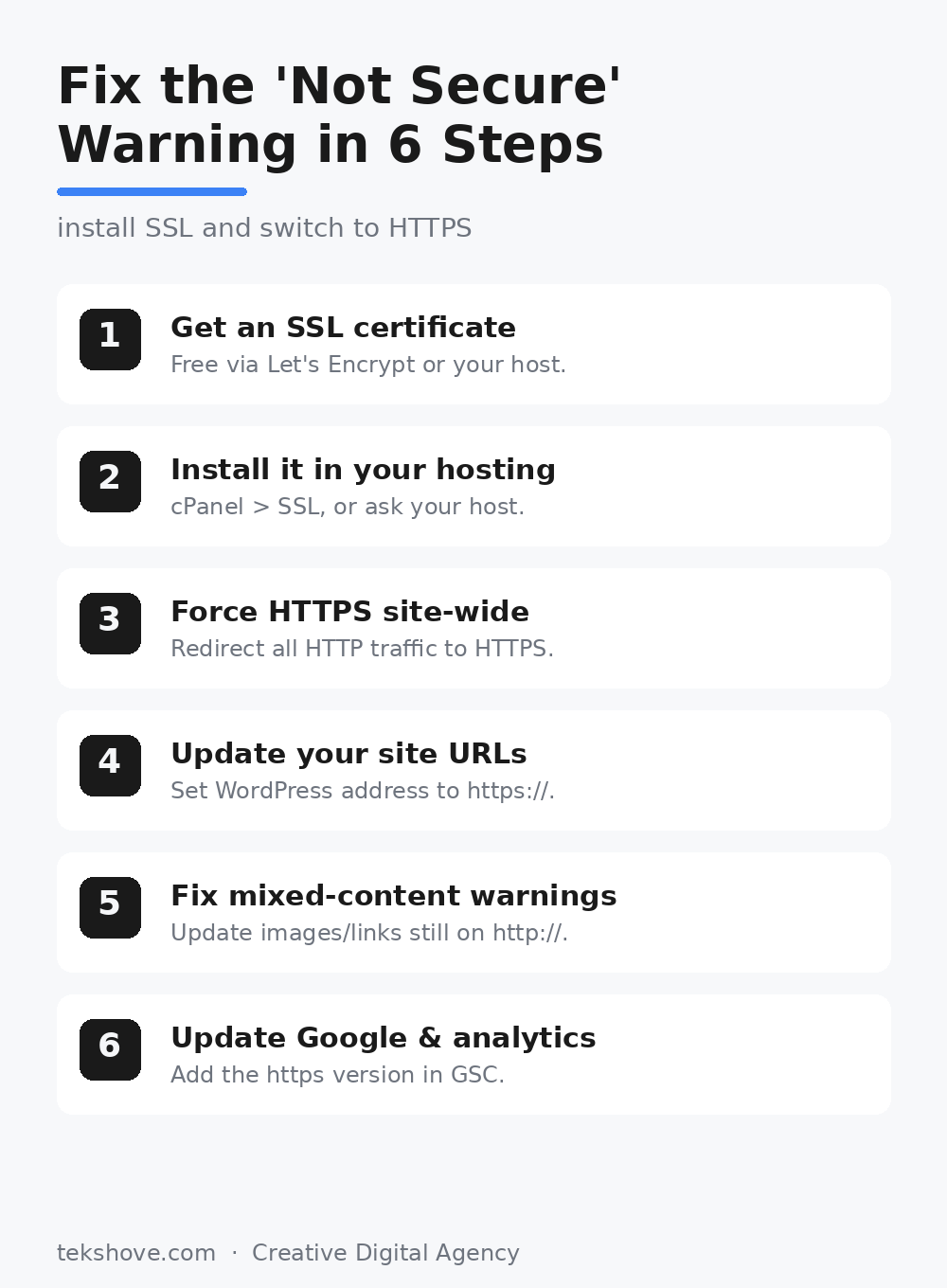
Save this checklist, the six steps to a secure site.
4.Update your site address
WordPress stores your site URL, and it needs to point to the secure version.
How: In WordPress → Settings → General, make sure both the “WordPress Address” and “Site Address” start with https:// (many SSL plugins handle this for you).
5.Fix mixed content warnings
Sometimes the padlock still doesn’t appear because a few images, scripts, or links on the page are still loading over HTTP. This is called “mixed content.”
How: An SSL plugin usually fixes this automatically. If not, find and update any resource still using http:// to https://.
6.Tell Google about the change
To Google, the HTTPS version is technically a different address, so it needs to know about the switch.
How: Add the https version of your site in Google Search Console, submit your sitemap again, and make sure your canonical URLs point to the https version.
Frequently asked questions
Is an SSL certificate free?
Usually, yes. Most hosts provide a free Let’s Encrypt certificate. Paid certificates exist for larger businesses but aren’t needed for a standard site.
Will fixing “not secure” affect my SEO?
Positively. HTTPS is a ranking signal, and removing the warning improves trust and keeps more visitors, both good for SEO.
My site has SSL but still says “not secure”, why?
Almost always mixed content: some images or scripts still load over HTTP. Fix those and force HTTPS site wide, and the padlock returns.
How long does it take to fix?
Often under an hour. Installing SSL and forcing HTTPS is quick; letting Google recrawl the secure version takes a little longer.
Still seeing “not secure”?
If your website is not secure and the padlock won’t appear, TekShove can install SSL, force HTTPS, and clear every mixed content error, fast. Let’s get your site secure and trusted.
Talk to Our Team
Tell us what you need help with and our team will get back to you.